
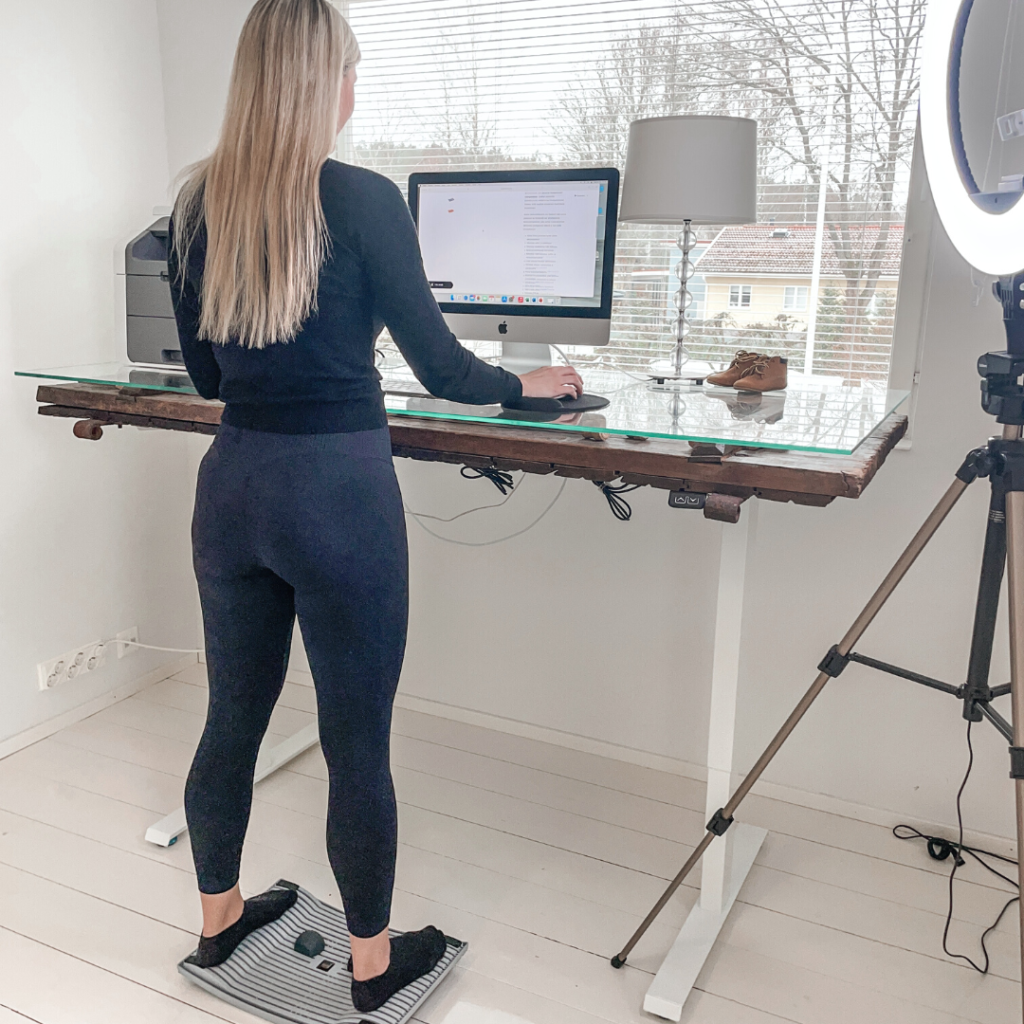
Working from home is part of everyday life for many people, but it is easy to overlook how well your workspace supports you. An awkward screen position, an unsuitable chair or long periods without movement can make desk work uncomfortable. Improving your home office ergonomics often starts with a few straightforward adjustments.
This guide explains how to set up an ergonomic home workstation, adjust your equipment and introduce more movement into your working day. Whether you are new to remote work or have worked from home for years, these practical steps can help you create a more comfortable setup.
Common Home Office Ergonomics Problems
Common workstation problems include a screen positioned too high or too low, insufficient back support, a keyboard or mouse placed beyond comfortable reach, and distracting screen glare.
Working at a dining table or on a sofa can also make it harder to position your equipment comfortably, particularly during extended computer use.
Laptops present a specific challenge because the screen and keyboard are connected. Placing the keyboard at a comfortable typing height may leave the screen too low, while raising the screen can make the keyboard difficult to reach.
Another challenge is staying in one position for too long. Even a well-arranged workstation should allow you to shift position and take regular breaks.
The Essentials of an Ergonomic Home Office
A comfortable home office combines a suitable working surface, a supportive chair, well-positioned equipment and appropriate lighting. These elements should work together and accommodate your individual needs.
Chair Support and Sitting Position
Adjust your chair so your feet rest comfortably on the floor or a footrest. Your thighs should feel supported without the seat pressing against the backs of your knees.
Position the backrest to support your lower back. You should be able to sit comfortably upright or slightly reclined without leaning forward to reach your equipment.
Avoid trying to hold one rigid sitting position throughout the day. A supportive chair should make it easy to adjust your posture.
Monitor, Keyboard and Mouse Position
Place your monitor directly in front of you, with the top of the screen at or slightly below eye level. Start at approximately an arm’s length away, then adjust the distance and text size so you can read without leaning forward.
Keep your keyboard and mouse close enough that your elbows remain near your body and your shoulders feel relaxed. Your wrists should stay broadly in line with your forearms.
For extended laptop work, consider an ergonomic laptop stand or an external monitor alongside a separate keyboard and mouse. This allows you to adjust screen height independently from your typing position.
Lighting and Workspace Layout
Choose lighting that makes your screen and documents easy to read without glare. Positioning your screen at a right angle to a window can help limit reflections, although blinds or other adjustments may still be needed.
Keep frequently used equipment within easy reach and leave enough space beneath the desk to reposition your legs.
How to Adjust Your Home Workstation Step by Step
Adjust the workstation as a whole, checking how each change affects the rest of your setup.
- Set your chair height. Position yourself so you can reach the keyboard with relaxed shoulders. If your feet no longer reach the floor, use a suitable footrest.
- Adjust the backrest. Make sure your lower back feels supported and you can sit without sliding forward.
- Position your keyboard and mouse. Keep them close, at a height that allows your elbows to rest comfortably near your sides.
- Set your screen height. Position the top at or slightly below eye level, adapting it to your vision and preferred working position.
- Check viewing distance. Start at roughly an arm’s length and adjust until text is clear without leaning or squinting.
- Review lighting and glare. Reposition the screen, adjust blinds or add task lighting as needed.
- Check movement space. Ensure you can shift position, move your legs and get up easily.
Try the setup during your usual tasks and make small adjustments where necessary. A comfortable working position should not require constant effort to maintain.
Add Movement to Your Home Office Routine
Good home office ergonomics includes opportunities to move. A carefully adjusted desk cannot replace breaks or regular changes of position.
A height-adjustable desk can make it easier to alternate between sitting and standing. Check your screen and keyboard positions whenever you change desk height.
Standing should provide variety rather than become another position you hold for hours. Combine it with sitting, gentle movement and walking breaks.
Use an Activation Board for Standing Tasks
Urheilupuolen tuotteemme Gymba® Activation Board is designed to introduce gentle, walking-like movement while you stand. Its patented cross-flexibility allows weight shifts and foot movement during suitable desk tasks.
The board also offers options for calf stretching and foot massage with the included massage balls.
Start with brief periods of use and adjust according to comfort. Alternate board use with sitting, standing on a stable surface and walking away from your desk.
Make Breaks Easy to Take
Use natural pauses between tasks as opportunities to move. Walk during a phone call, get up between meetings or take a short break after a period of focused work.
Gentle mobility exercises can add further variety. A stretching stick can provide a handhold for controlled upper-body movements, provided you follow the exercise guidance and stay within a comfortable range.
Keep useful accessories accessible so taking a movement break does not require rearranging your workspace.
Common Ergonomic Mistakes and How to Avoid Them
Many workstation problems develop through habit. Reviewing your setup regularly can help you notice them.
A Laptop Screen That Encourages Looking Down
If you repeatedly bend your neck to view the screen, consider raising the laptop or using an external monitor.
When raising a laptop, add a separate keyboard and mouse so the improved screen position does not create an uncomfortable typing position.
Unsupported Feet
If your feet hang above the floor, review your chair and desk heights. A footrest can provide support when the chair needs to remain higher for comfortable keyboard access.
You do not need to keep your legs fixed in one position. Leave room to move them and change position throughout the day.
Raised Shoulders While Typing
Raised shoulders may indicate that the keyboard or working surface is too high. Adjust the desk or chair so your arms can remain relaxed.
If raising the chair leaves your feet unsupported, add an appropriate footrest.
Reaching for the Mouse
Keep the mouse close to the keyboard and on the same working level. Move other items out of the way if they force you to reach forward or sideways.
Check that you have enough space to use the mouse without repeatedly lifting or stretching your arm.
Holding a Phone Between Your Shoulder and Ear
Use a headset or another suitable hands-free option for calls that involve typing or taking notes. This lets you keep your head in a more comfortable position.
Forgetting to Take Breaks
If you regularly lose track of time, use reminders or link breaks to recurring tasks. The aim is to make movement a normal part of the working day.
Maintain Your Home Office Ergonomics Over Time
Your workstation may need further adjustment when your equipment, tasks or working habits change. Review the setup when something feels uncomfortable and after introducing new furniture or accessories.
Focus on three practical priorities: equipment that fits, comfortable support and opportunities to move. Ergonomic products can help, but their usefulness depends on how they fit into your daily routine.
Start with one clear problem, make an adjustment and assess the result during normal work. Over time, these small changes can create a home office that is easier to use and more adaptable to your needs.